
Review is a web application that users run to validate and modify automatically classified documents before starting the automated workflow.
Ensure that OpenText™ Content Server or other Enterprise Content Management System is installed. This is the migration destination and is required for the full functionality of Review.
Overview
Setting up this application involves three steps:
Create the folder structure
Configure the Review application settings
Set up the Review site in Internet Information Services (IIS) Manager
What You Will Need
Creating the Folder Structure
Create a Shinydocs Review folder in the C:\inetpub folder
Right-click on the shinydocs-review-[VERSION]-[DATE].zip file and Unblock
Apply
Unzip the content into C:\inetpub\Shinydocs Review
Configuring the appsettings-review.json File
The appsettings-review.json file in C:\inetpub\Shinydocs Review is used to configure Review. Configure this file to point to your Content Server to update the Review display settings.
In your preferred text editor, open appsettings-review.json and modify the following values as required.
Setting up the Review Site in IIS Manager
Adding a new website
Under Sites within IIS Manager:
Add a new Website by right-clicking Sites
Name your site (For example, “Shinydocs Review”)
Point the Physical path to C:\inetpub\Shinydocs Review
Provide a port that is not already in use
Click OK once you are satisfied with the new site configurations
Updating the Site Permissions
Add the user IIS_IUSRS to have access to the C:\inetpub\Shinydocs Review folder
Setting up the Site Application Pool
Start IIS Manager
Select Application Pools
Right-click the Shinydocs Review app pool
Select Advanced Settings
Edit as follows:
Ensure the version selected for .NET CLR version is the latest
Select Classic in Managed pipeline mode
Scroll to Process Model
Select and edit the Identity: ApplicationPoolIdentity
Change to Custom account: and select Set…
Set Credentials: Input the service account information
Click OK
Setting up the Site Authentication
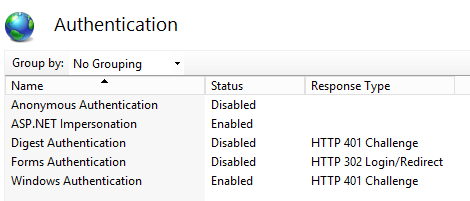
Select your site and double-click Authentication under the IIS column to open the Authentication Settings.
Enable ONLY the following:
Windows Authentication
ASP.NET Impersonation
Setting up Kerberos Passthrough
Shinydocs Review uses IIS and Windows Authentication with Kerberos to authenticate a user from their browser. The following guide will help you set up your Windows Server environment to support Automation Review with Kerberos pass-through (2 hop authentication) in Setting up Kerberos authentication in Cognitive Suite documentation.