
Overview
Cognitive Toolkit includes a Command Line Interface (CLI) tool for Shinydocs Cognitive Suite. From the CLI tool, you can run several runscript commands for the most common use cases, and you can create your own if needed.
Runscript commands can only be run by an Administrator.
Getting Started
Prerequisites
Cognitive Toolkit must be installed and available.
Runscript Commands
Using the CLI tool, administrators can use the following runscript commands for specialized applications.
BulkDocumentEnricher
Description
The BulkDocumentEnricher runscript command allows you to enrich documents in the index by specifying a comma-separated value file that specifies a mapping between a search term and data to import into the index.
Running the script
To run the BulkDocumentEnricher script, provide the following parameters to the runscript tool:
Example:
CognitiveToolkit.exe RunScript -p "C:\Users\username\Desktop\Scripts\Crawling Files\resources\cognitive-toolkit-executable\Scripts\General\BulkDocumentEnricher.cs" -u "http://localhost:9200" -i tagging_index --csv "C:\Users\username\Desktop\Scripts\Crawling Files\CSV\department_enrichment.csv" -q "C:\Users\username\Desktop\Queries\fulltext.json" --column-names business_group,business_unit,department Format of the query file
The query file is a JSON file that uses the standard ElasticSearch query language. By surrounding a field in curly braces, the BulkDocumentEnricher will replace that term with the value of that field instead.
Format of the comma-separated file
The first line lists the field name you would like to search against, followed by the field names you would like to decorate the documents with.
Subsequent lines list the term to search for, and if found, the value to set the decorator field to.
Query Example
For example, given the following query:
{ "bool": { "must": [ { "exists": { "field": "fullText" } }, { "match": { "fullText": "{fullText}" } } ] } } AND the following CSV file:
fullText, category
Mickey, mouse
Donald, duck
Pluto, dwarf planet
Running the BulkDocumentEnricher will search the fullText of each document.
If the term “Mickey” is found, a category field will be added to the document in the index and set the field to “mouse”
If the the term “Donald” is found, a category field will be added to the document in the index and set the field to “duck”
If the the term “Pluto” is found, a category field will be added to the document in the index and set the field to “dwarf planet”
You can tag documents with more than one field, by adding additional columns to the document. For example:
fullText, category, video, serial-number
Mickey, mouse, steamboat, 0001
If the term “Mickey” was found in the full text, three category fields (category, video, serial-number) will be added to the document in the index and set the fields to “mouse,” “steamboat,” and “0001” respectively.
Adding an asterisk (*) to the column name indicates that the corresponding field should be treated as a single value (a string) rather than a list of values (an array) and that value will overwrite the previous value rather than be appended to the list.
ImportCsv
Description
The ImportCsv runscript command will get the CSV file and create an index. You can add a customized field name and field value. The command also creates a timestamp indicating when the Index is created.
Running the script
To run the ImportCsv script, provide the following parameters to the runscript tool:
Example
For the following CSV file (a list of major league baseball teams):
teamname,city,league,division
Arizona Diamondbacks,"Phoenix, Arizona",National,West
Atlanta Braves,"Atlanta, Georgia",National,East
Baltimore Orioles,"Baltimore, Maryland",American,East
Boston Red Sox,"Boston, Massachusetts",American,East
the corresponding ImportCSV Runscript and parameters might look like this:
Runscript:
-p
-i
-u
--filePath
--fieldName
For example: --fieldName schemaType
--fieldValue
For example: --fieldValue baseballteams
--idFields
For example: --idFields "teamname,city,league,division"
MoveValues
Description
The MoveValues script allows you to move the values of an existing field to a new field, optionally clearing the previous value of the original field.
Prerequisites
Before running the MoveValues script:
Create an index: Run an indexing tool such as CrawlExchange or CrawlFileSystem and create an index
Add hash and extract text: Run a hashing tool such as AddHashAndExtractedText to add hash value and extract text from the index
Running the script
To run the MoveValues script, provide the following parameters to the runscript tool:
Example
Runscript:
Below is an example of what the parameters might look like to move the values from an old field called Address to a new field called Location:
-p
-i
-u
-q
--old-field-name Address
--new-field-name Location
--clear true
CognitiveToolkit.exe RunScript -p "C:\Users\ldekker\Desktop\Scripts\Crawling Files\resources\cognitive-toolkit-executable\Scripts\General\MoveValues.cs" -u "http://localhost:9200" -i Shinydocs_index -q "C:\Users\ldekker\Desktop\Queries\fulltext.json" --oldFieldName Address --newFieldName Location --clear true Format of the query file
The query file is a JSON file that uses the standard ElasticSearch query language. By surrounding a field in curly braces, the MoveValues will replace that term with the value of that field instead.
Query Example
{ "bool": { "must": [ { "exists": { "field": "fullText" } }, { "match": { "fullText": "{fullText}" } } ] } } NormalizeExtension
Description
The NormalizeExtension script allows you to standardize the format of file extension field for all documents in an index by removing any leading "." and ensuring the entirety of the value is lowercase.
This command is useful in situations where you’ve previously crawled your file system and the following types of nonstandard extensions were recorded in the index:
oranges.pdf
apples.PDF
bananas.Pdf
In the index, the “extension” field would have recorded the following values: “pdf”, “PDF”, and “Pdf” respectively, causing issues with grouping the results.
Running the NormalizeExtension runscript command will standardize them all in lowercase as “pdf”, “pdf”, and “pdf”.
Prerequisite
There should have been an initial crawl performed and evidence of nonstandard file extensions recorded within the index.
Running the script
To run the NormalizeExtension script, provide the following parameters to the runscript tool:
Example
Runscript:
Below is an example of what the parameters might look like to normalize the extensions for all items in an index:
-p
-i
-u
-q
CognitiveToolkit.exe RunScript -p "C:\Users\ldekker\Desktop\Scripts\Crawling Files\resources\cognitive-toolkit-executable\Scripts\General\NormalizeExtension.cs" -u "http://localhost:9200" -i Shinydocs_index -q "C:\Users\ldekker\Desktop\Queries\match_all.json" Format of the query file
The query file is a JSON file that uses the standard ElasticSearch query language. By surrounding a field in curly braces, MoveValues will replace that term with the value of that field instead.
Query Example
{ "match_all" : {} } RegexEntityExtractor
Description
The RegexEntityExtractor runscript command allows you to extract values from a pattern, such as a driver’s license, to populate corresponding fields in an index.
Prerequisites
Before running the RegexEntityExtractor script:
Create an index: Run an indexing tool such as CrawlExchange or CrawlFileSystem and create an index.
Add hash and extract text: Run a TextExtraction tool such as AddHashAndExtractedText to add extract text to the index.
Running the script
To run the RegexEntityExtractor script, provide the following parameters to the runscript tool:
Example
Below is an example of what parameters might look like to find and extract Ontario Drivers License numbers (Canada) from the fullText field, and place the extracted value in an index field called “Ontario Drivers License”.
CognitiveToolkit.exe RunScript -p "C:\Users\ldekker\Desktop\Scripts\Crawling Files\resources\cognitive-toolkit-executable\Scripts\General\RegexEntityExtractor.cs" -u "http://localhost:9200" -i Shinydocs_index --csv "C:\Users\ldekker\Desktop\Scripts\Crawling Files\CSV.csv" -q "C:\Users\ldekker\Desktop\Queries\fulltext_not_OntarioDriversLicense.json" --regex-column-name PII_regex --tag-column-name PII_type Format of the CSV file
PII_type,PII_regex Ontario Drivers License,\b[a-zA-Z]\d{4}[\s-]*\d{5}[\s-]*\d{5}\b 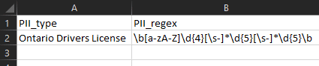
Format of the query file
The query file is a JSON file that uses the standard ElasticSearch query language.
Query Example
Full text must exist, “Ontario Drivers License” field must not exist:
{ "bool": { "must": [ { "exists": { "field": "fullText" } } ], "must_not":[ {"exists": { "field": "Ontario Drivers License"} } ] } } TagQueryResult
Description
The TagQueryResult script allows you to tag a document with the given field name and field value. If the field name exists, then it will only add the value to the field without creating a field with the same name. This runscript can be used to tag documents with any field name and value. For example, by specifying the ROT rules in the query file, you can tag a document with the appropriate value.
Running the script
To run the TagQueryResult script, provide the following parameters to the runscript tool:
Example
Below is an example of what the parameters might look like to check the “path” field for anything that has “finance” in it and set the field “department” to “Finance”.
In this example, the TagQueryResult script will skip any item in “backup” folder(s) and it will skip any items that already have the field “department” set.
CognitiveToolkit.exe RunScript -p "scripts\General\TagQueryResult.cs" --field-values "Finance" --field-name "department" -q "COG Batch Files\ACME RunScripts - 3 dept+offer-status+offer-year\department-finance.json" -i shiny -u http://localhost:9200 Runscript:
-p
-i
-u
--q
--field-name
For example: --field-name “department”
--field-values
For example: --field-values “Finance”
UpdateInd
The UpdateInd runscript command allows you to update indices when upgrading to Shinydocs Cognitive Suite 2.5.0. Specifically, this command resolves keyword issues associated with prop-* and cc-* fields with previous versions of Shinydocs Cognitive Suite.
Prerequisites
In some instances, clients created index fields that were prefixed with prop-* and cc-*. Running the UpdateInd runscript command updates the keyword property on these fields prefixed with prop-* and cc-* to ensure they are included in searches.
For a given index, this command only needs to be run once. There is no need to run this command again, unless someone restores an old index.
Running the script
To run the UpdateInd script, provide the following parameters to the runscript tool:
Example
CognitiveToolkit.exe RunScript -c UpdateInd -p "C:\Users\ldekker\Desktop\Scripts\Crawling Files\resources\cognitive-toolkit-executable\Scripts\General\UpdateInd.cs" -u "http://localhost:9200" -i Shinydocs_index FlagFieldBasedOnRegex
Description
The FlagFieldBasedOnRegex runscript command allows you to enrich documents in the index by adding fields based on given patterns and values.
Prerequisites
Before running the FlagFieldBasedOnRegex script:
Create an index: Run an indexing tool such as CrawlExchange or CrawlFileSystem and create an index.
Add hash and extract text: Run a hashing tool such as AddHashAndExtractedText to add hash value and extract text from the index.
Running the script
To run the FlagFieldBasedOnRegex script, provide the following parameters to the runscript tool:
Examples
Below, an Ontario Health Card example has been provided along with the regex pattern for the Ontario Driver's License, Canadian passport and Canadian postal code.
Ontario Health Card Number
Runscript
-p path to the script goes here
--regex-pattern "\d{4}[\s-]\d{3}[\s-]\d{3}[\s-]*[a-zA-Z]{2}"
--value "Ontario Health Card Number"
--field-name potential_pii
--search-field name
-q query file goes here
-u index URL goes here
-i index name goes here
Driver's License Number Ontario
Runscript
--regex-pattern "\b[a-zA-Z]\d{4}[\s-]*\d{5}[\s-]*\d{5}\b"
--value "Driver's License Number Ontario"
Canadian Passport Number
Runscript
--regex-pattern "\b[a-zA-Z]\d{4}[\s-]*\d{5}[\s-]*\d{5}\b"
--value "Canadian Passport Number"
Canadian Postal Code
RunScript
--regex-pattern "\b[a-zA-Z]\d{4}[\s-]*\d{5}[\s-]*\d{5}\b"
--value "Canadian Postal Code"