
Compatible with Cognitive Toolkit 2.7.0 and higher.
You will need to configure each Cognitive Toolkit to use the shinydocs-jobs index. See below for instructions.
What is the shinydocs-jobs index?
An index called shinydocs-jobs can be created and used to log data by enabling the --use-shinydocs-jobs option during the following Cognitive Toolkit operations:
AddClassifications
AddExtractedTextFromEngineeringDrawings
AddFromSqlDatabase
AddHashAndExtractedText
AddPathValidation
AddPropertyData
CacheFileSystemPermissions
CopyItems
Dispose
ExportFromIndex
ExtractAndCrawlPst
ExtractEntities
FindSimilarClassification
Migrate
RemoveField
RemoveItems
RestoreCachedFileSystemPermissions
SetFileSystemPermissions
TagDuplicate
UpdateProperties
Enabling the --use-shinydocs-jobs option prompts the Cognitive Toolkit to send logging data to the shinydocs-jobs index during an operation. This will help you track current crawl activities, gather metrics and visualize errors, such as access and text extraction errors.
Visualizations & Dashboard
See: Shinydocs Jobs Visualizations & Dashboard
Key fields in the shinydocs-jobs index
Once this feature is enabled, there are key fields you should be aware of and their purpose. There are two types of entries in this index:
Crawl operations and metrics
Contains information about the crawl operations and metrics from completed crawl operations. There are more fields available, these are some of the key fields to know about:
Errors
Contains errors encountered while crawling, hashing, text extracting, etc. There are more fields available, these are some of the key fields to know about:
Configure Cognitive Toolkit to log to the index
With logging to the index enabled, the Cognitive Toolkit will attempt to update the shinydocs-jobs index with log entries as well as the log file. This can be helpful in visualizing current crawl activities, gathering metrics, and visualizing errors (access errors, errors in text extraction, etc.). If the connection between the Cognitive Toolkit and the Index breaks or Cognitive Toolkit is terminated unexpectedly, it will be unable to log to the index.
This must be configured before performing any crawl operations, otherwise previous and current running processes will not be logged to the index (but will still be logged to the log file).
In the Cognitive Toolkit directory, which contains
CognitiveToolkit.exe, openCognitiveToolkit.exe.configin a notepad-like editorOn Line 20, uncomment
Set the
valueto the URL and port of your Analytics Engine (index) endpoint, replacinghttp://localhost:9200Save the file
Set up the index pattern
Once your first crawl has started, a new index will be created called shinydocs-jobs. To set up the index pattern in the Visualizer:
In the Visualizer, click Management
Select Index Patterns
Select Create index pattern

In the field Index pattern, enter
shinydocs-jobs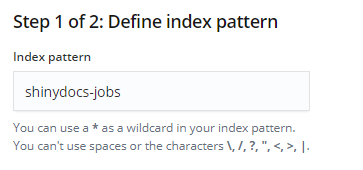
Select Next
In the Time Filter field name drop-down, select “I don’t want to use the Time Filter”
Select Create index pattern
Wait for the index pattern to be created (less than 1 minute)
Once created, you will see a list of fields in your index pattern
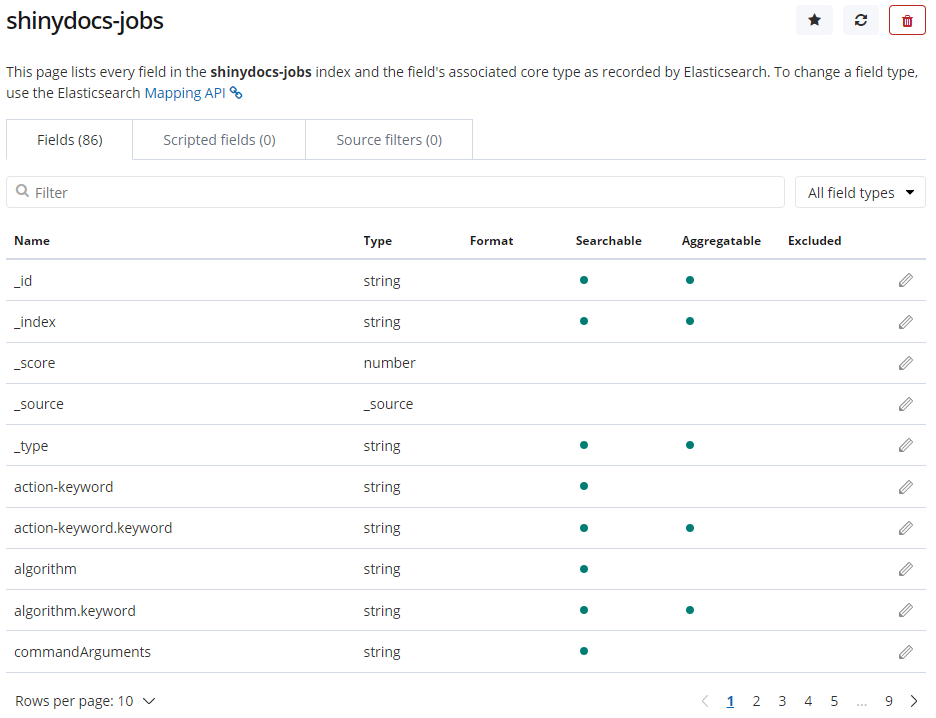
In the Filter search bar, enter
duration, and select the pencil (edit) buttonIn the Format drop-down, select Duration
The Input format should be Seconds and the Output format should be Human Readable
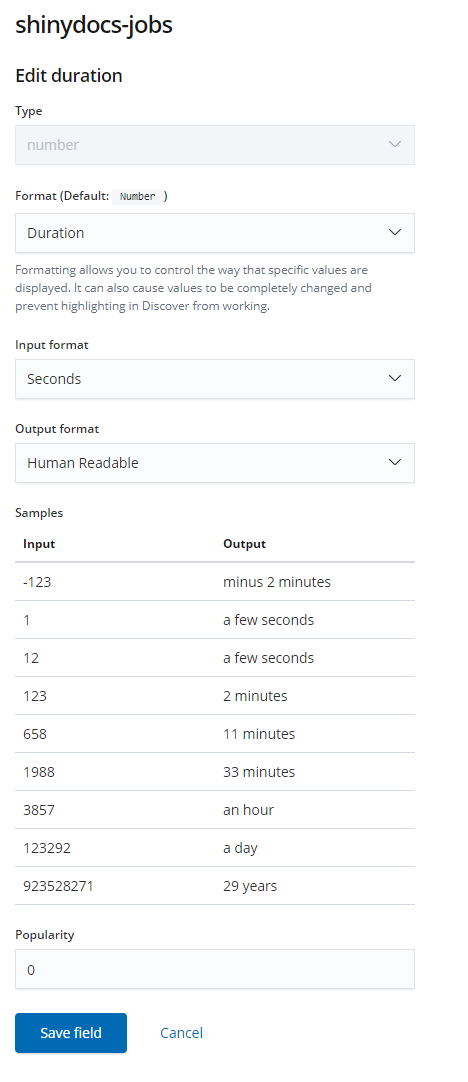
Select Save field, all done!
Removing tasks that did not complete
Occasionally, there will be tasks that do not complete fully and therefore remain in the index incomplete. This can be caused by:
System shutting down while process is running
Application crash
Terminating the process before completing
Connection to the index breaks
To remove these items from the index you will need to use the Cognitive Toolkit or the Visualizer’s Dev Tools section. You will need the Task IDs (indexed as _id) of the entries to remove them (example ID: 5f0d242f-eafe-487d-982c-9250bbed4ecf). Either method will require a query to tell the index what to delete. You can use this query for either method:
Remove ID query
Replace <_id_here> with the ID(s) you want to remove
{ "query": { "ids": { "values": [ "<_id_here>" ] } } } Cognitive Toolkit Method
Replace http://
with your index URL and port &
with the path to the Remove ID query
CognitiveToolkit.exe RemoveItems --index-name shinydocs-jobs --index-server-url http://

        --query
After Cognitive Toolkit has gathered the items to remove from the index, you will be prompted in the terminal to confirm the removal of these items. If you do not want to be prompted, use the --force argument in the command
Visualizer Method
Navigate to Dev Tools in the left sidebar menu.
Replace <_id_here> with the ID(s) you want to remove. Then run the command:
POST shinydocs-jobs/_delete_by_query { "query": { "ids": { "values": [ "<_id_here>" ] } } } The output after completion will look like this:
{ "took" : 81, "timed_out" : false, "total" : 1, "deleted" : 1, "batches" : 1, "version_conflicts" : 0, "noops" : 0, "retries" : { "bulk" : 0, "search" : 0 }, "throttled_millis" : 0, "requests_per_second" : -1.0, "throttled_until_millis" : 0, "failures" : [ ] } "deleted": reflects the number of deleted items