
Enable “Enhanced catalogue search”
Go to https://localhost:9701/flags (or https://
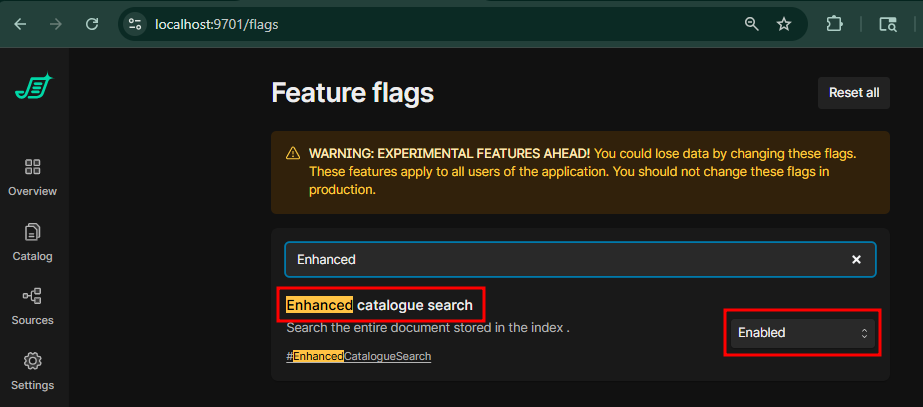
The change is applied automatically. You don’t need to save the change or restart services.
Toggle Advanced Query
Go to Control Center (https://localhost:9701 or https://
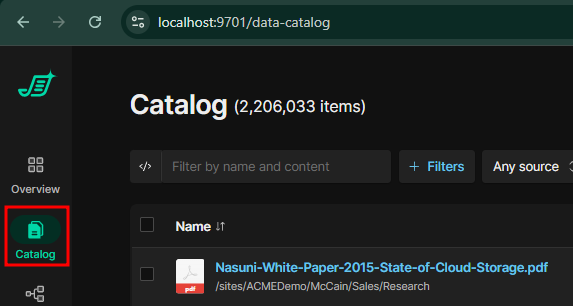
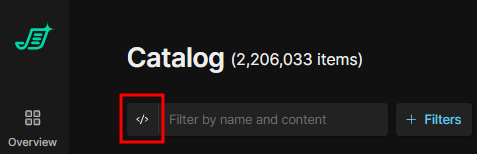
Select the icon to toggle on ‘advanced query'
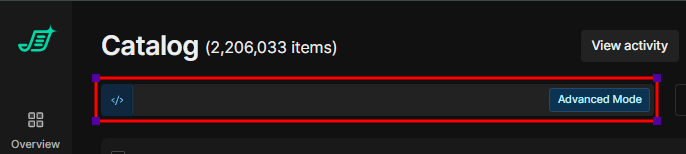
Autocomplete Queries
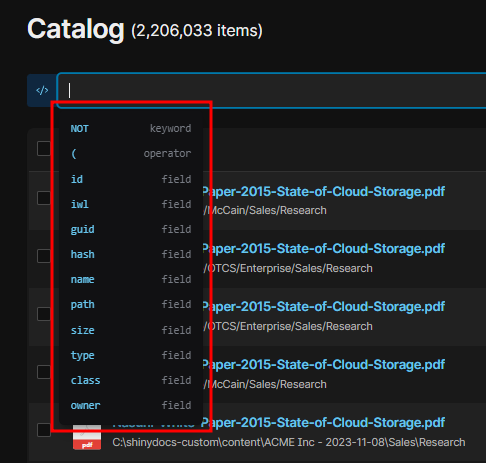
While “Advanced Query” is toggled on, when you select in the search field, you will be presented with a drop down list of fields and operators.
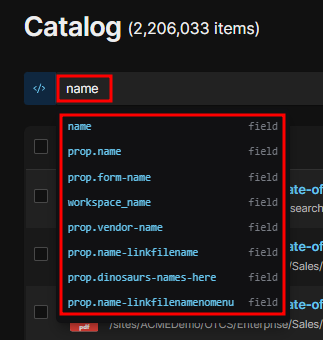
You can select one of the search operators or start typing in the name of the field you want to query against.
Search Term Formatting
Below is a list of the different fields types and examples of how they are formatted.
Search Term Operators
Below is a list of the primary operators you can use to narrow and broaden your search.
Additional Search Term Operators for Number and Date Fields
Below is a list of additional operators used for date and number fields specifically.
Search Term Modifiers
Below is a list of modifiers that provide further options for your search terms.
Unique and Hidden Fields
Below is a list of fields that have unique naming or are from the autocomplete.