
Applying Hash Values
The Cognitive Suite provides the ability to calculate a hash value for each file by performing a one-to-one (byte-to-byte) comparison. If two or more files have the exact content, the hash value will be the same thus identifying it as a duplicate.
Have you done the initial crawl of your files? If not, you may want to refer to this pagebefore applying the hash values.
Step by step:
Open a Windows command prompt as Administrator.
Change directory (cd) to where you extracted the shinydocs-cognitive-toolkit-yyyy-mm-dd.zip file
Run the command for a file share crawl to add hash: CognitiveToolkit.exe AddHashAndExtractedText --action-keyword hash --query {path-to-file} -u {url-to-index} -i {name of index}
The action-keyword option allows you to crawl for hash, text or both (default is both hash and text).
Shinydocs recommends use of the default hash+text for complex systems which typically have longer file download times (such as Content Server, SharePoint or FileNet, for example).
Adding hash and full text from a file share is possible, but not recommended. For file shares, Shinydocs recommends crawling for hash first and then crawling to extract text in a separate step.
Visualize Your Duplicated Data
Before you begin, ensure that Analytics Engine and Visualizer has been installed. If not, refer to the installation instructions.
In a Web Browser (Chrome is recommended), enter the address for where Shinydocs Visualizer has been installed. This is typically
:5601. If you are running the tool locally, use "localhost:5601". From the Dashboard menu, open the basic dashboard for displaying metadata information: Duplicated Files
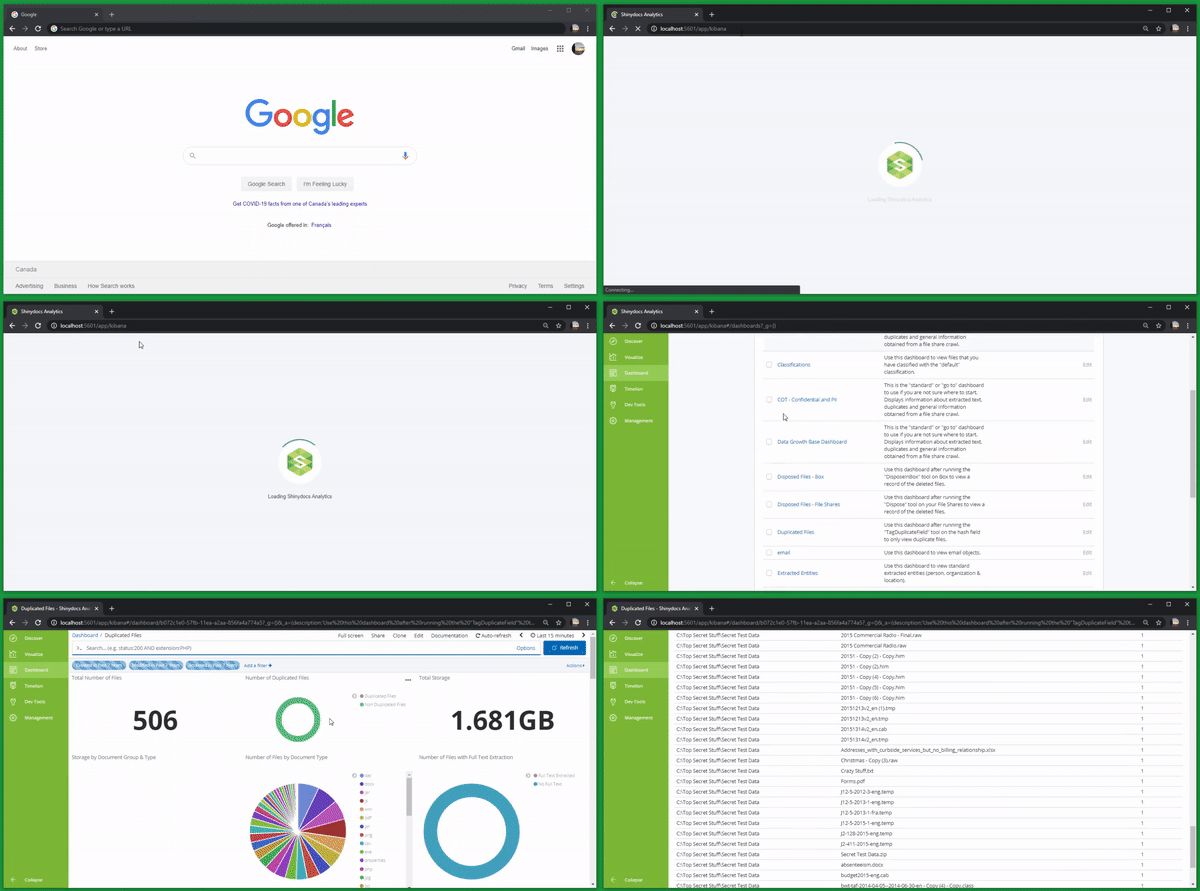
On this dashboard you will see a number of visualizations, each of which are based on a query of the underlying Analytics Engine.
The visualizations on this Dashboard include the following:
Total Number of Files
Number of Duplicated Files
Total Storage
Storage by Document Group & Type
Number of Files by Document Type
Number of Files with Full Text Extraction
Number of Files by Last Created Date
Number of Files by Last Modified Date
Number of Files by Last Accessed Date
Top Duplicated Files
File Listing by File Size
File Listing by Name