
The Intelligence section in the Control Center lets you integrate large language models into your workflows. You can choose between using models hosted through Ollama (for local and secure inference ) or OpenAI (for cloud-hosted models via API). This allows you to enrich data, extract structured insights, and power AI-based features across the platform (i.e. Streamlined Search Document Q&A).
Choosing a Model Provider
At the top of the Intelligence settings panel, you'll find the Choose model dropdown. You can select from:
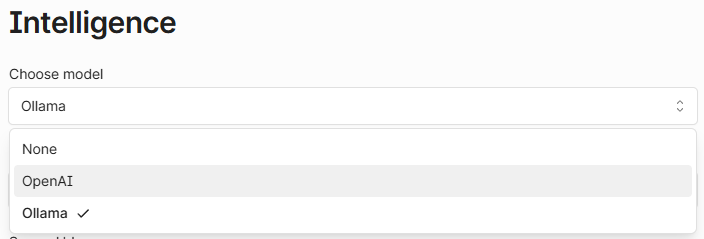
Ollama: For using locally hosted models.
OpenAI: For using models from the OpenAI API.
Ollama Model Setup
To use an Ollama-hosted model, select Ollama in the dropdown.
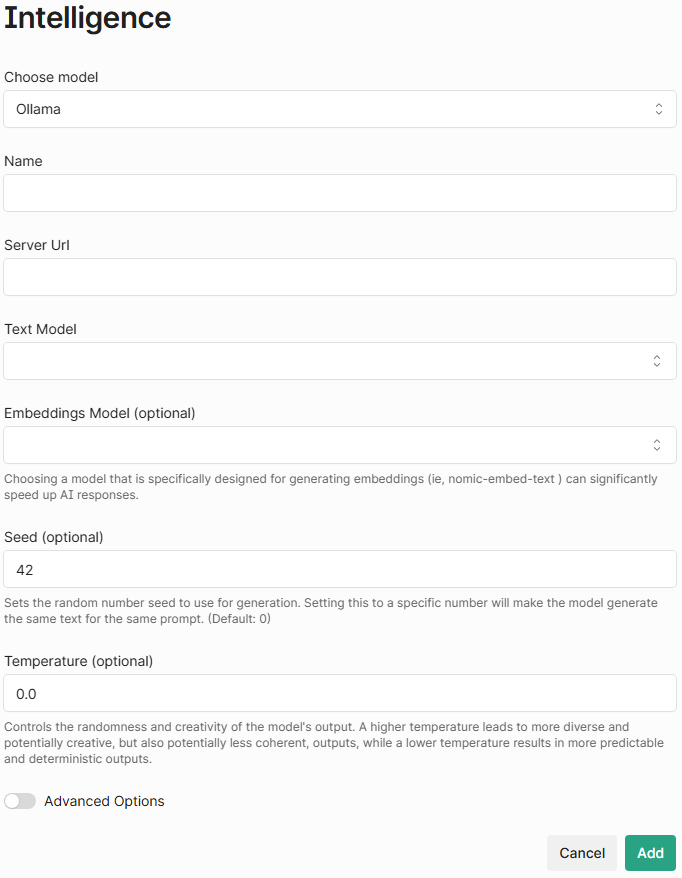
Then fill out the fields:
Name: A friendly name to identify this model (e.g.
Desktop-llama3:8b)Server URL: URL to your Ollama instance (typically
http://localhost:11434)Text Model: The name of the language model to use (e.g.
llama3:8b,gemma:2b)Embeddings Model: Model name used for generating embeddings (e.g. nomic-embed-text).
This option is not optional for models configured to do document Q&A. Embeddings are generated at that time, and a model must be selected.
Shinydocs highly recommends using
nomic-embed-text:latestas your embeddings model for performance.
Optional Advanced Fields
These settings give you fine-grained control over how the model behaves. They’re not required, but adjusting them can help you balance creativity, speed, and consistency depending on your use case. If you're not sure what to change, the defaults are a good starting point.
OpenAI Model Setup
At this time, AI Enrichment (content tagging) is not supported with OpenAI models.
If you're using the OpenAI API, choose OpenAI in the dropdown.
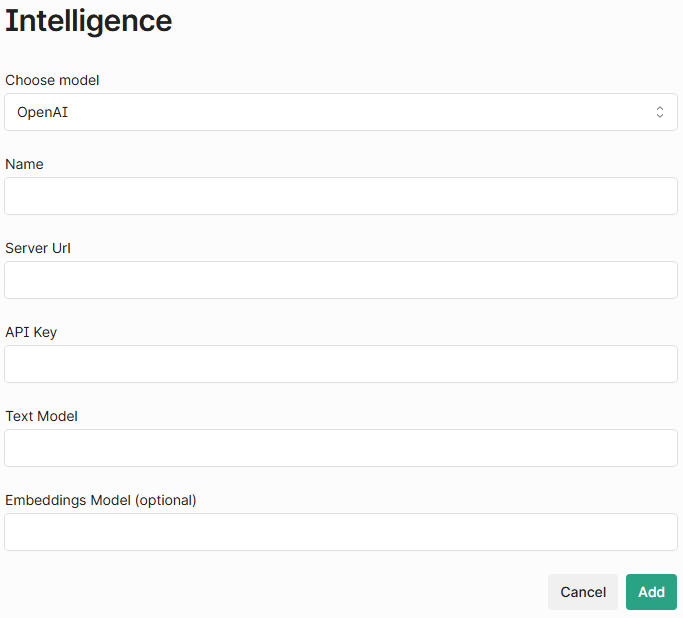
Required Fields
Name: Name for the integration (e.g.
GPT-4 Cloud)Server URL:
https://api.openai.com/v1.API Key: Your OpenAI API key (starts with
sk-)Text Model: The name of the model (e.g.
gpt-4,gpt-3.5-turbo)Important! An embeddings model is required to use document Q&A, but is not required for AI Enrichment.
Embeddings Model (optional): The model used to generate embeddings (e.g.text-embedding-3-small). We recommendtext-embedding-3-smallas it yields the highest pages per dollar.You can view the available embeddings models OpenAi provides here: Vector embeddings - OpenAI API
Once saved, the OpenAI model will appear in the Model List.
Model List and Managing Defaults
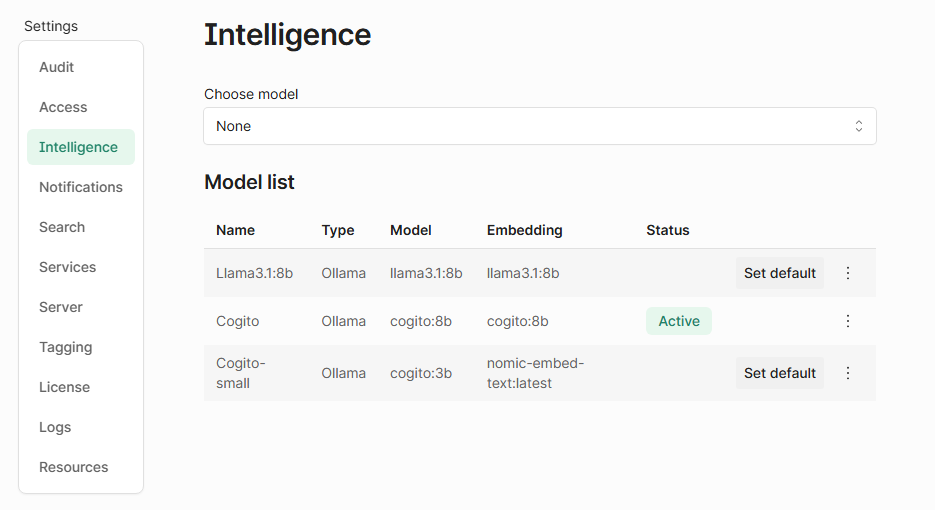
At the bottom of the page, you’ll see a Model List table with all configured models. You can:
Set a model as default: This model will be used unless another is explicitly selected.
Check which model is active: Only one model runs at a time, and is marked as Active.
Add multiple models: Great for switching between testing and production setups.
Using, Switching, or Updating Models
In the Intelligence configuration, you have a two options available:
Set default
Edit
Set default
The intelligence engine set as default will be the configuration used in Shinydocs Streamlined Search AI. When a user asks questions about documents with the AI chat bot, this is the configuration that will be used.
To switch models, click Set default on another model from the list. If you update the Ollama backend (e.g. swap to a newer version of a model), you may want to remove and re-add the model entry here to match.
AI Enrichment (content tagging) has the option to select which intelligence engine to use per prompt, and is not locked to the default engine.
Edit
You can edit existing intelligence engines to tweak advanced model options, the Ollama URL, and more by clicking on the kebab menu (3 vertical dots) for the respective intelligence engine.
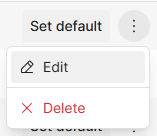
You can also delete an existing engine by clicking Delete.