
Accessing Shinydocs Pro Search
Your administrator will provide you with the URL to your organization’s Shinydocs Pro Search homepage. To access Shinydocs Pro Search, navigate to this URL in your web browser. We recommend bookmarking this URL for future use.
Role-based Access
Shinydocs Pro Search uses role-based access control to ensure that you see the content you have permission for.
You may have one or more roles assigned to you. You can view your assigned roles and switch between them if you belong to more than one.
Click your User Profile in the top-right corner
Select Preferences
Select a role from the dropdown
Shinydocs Pro Search is automatically refreshed to reflect the role selected.
The appearance of Shinydocs Pro Search can vary based on the role you select. This is because administrators can define custom configurations for the following search features:
Advanced Search
Filters
Sources
Source Groups
Language Support
The default language for the Shinydocs Pro Search interface is derived from your browser. There are three options to choose from including English, Français (Canadian), and the default Browser Language.
Manually override this by opening the Preferences menu under your Profile in the top right corner

Select English or Français (Canadian) under Choose preferred language
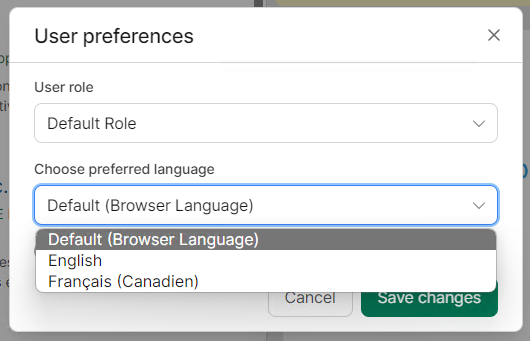
Save changes
Set it back to Browser Language any time.
Searching for content from online sources
Some sources from Microsoft online repositories, such as Exchange, OneDrive, and SharePoint, may be created. You will only see search results from these platforms if you are logged into them. You can manually check your login status or, if configured by your administrator, you can allow Shinydocs Pro Search to prompt you to log in during a search when required.
For OneDrive, only items that you own will be returned in search results. Items that you do not own but are shared with you will not be returned.
Manually confirming you are logged into Microsoft Online
In the top right corner of the Shinydocs Pro Search page, select your profile
In the dropdown, you will see your logged-in status for Microsoft Online
Logging into Microsoft Online automatically during a search
This feature is available if configured by your Shinydocs Pro Search administrator.
Run a search against a source that contains Microsoft Online content
If you are not logged into your Microsoft account, you will automatically be prompted to log in before the search results are returned
Complete your login and view the search results
Searching from the Shinydocs Pro Search homepage
The Shinydocs Pro Search homepage allows you to perform natural language search queries of your corporate data from a familiar search interface.
Search Field
Performing a standard search
Specify your search query with a keyword or keywords in Search.

Shinydocs Pro Search returns a list of relevant results you have permission to review. Results include all metadata and extracted information, such as full text or added insights.
Searching by index fields
Searching by index fields allows you to perform a search that will refine the results.
Prefix your query in the Search field with the name of the index field you want to search, followed by a colon ( : ) and the term you want to find (for example, creationTimeUtc:2021-05-04).
What does each index field mean?
Some fields can be used to refine search results within the index created by the Analytics Engine.
Date and number ranges require square brackets around the search term.
Searching by Enrichment tags
You can search for documents, emails, and email attachments by tags as a keyword.
Specify your search query with a tag value in Search.
Tag values are not case-sensitive.
For more information about tags, visit the Enrichment View section of the Reviewing Search Results article.
Searching with operators
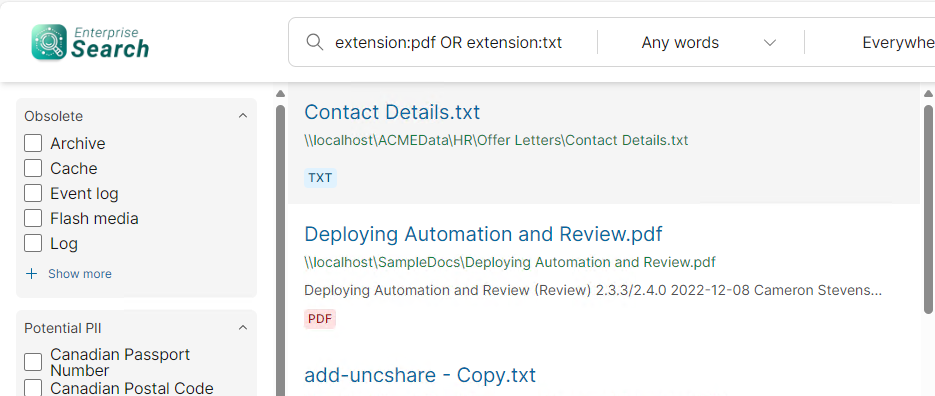
Searching with operators allows you to perform a further refined search directly from the search bar, including or excluding keywords.
Enter a combination of keywords and operators in Search.
Operators must be specified in all caps.
Operators
Examples of Search Queries with Operators
Match Options
Searching with a Match option
Match option searches allow you to combine words and phrases to limit, broaden, or define your search.
Specify your search query with an option selected from the Match dropdown.

What does each Match option mean?
There are four options when performing a Match search: Any words, All words, Contains, and Exact phrase.
Source Options
Performing a search from a Source or a Source Group
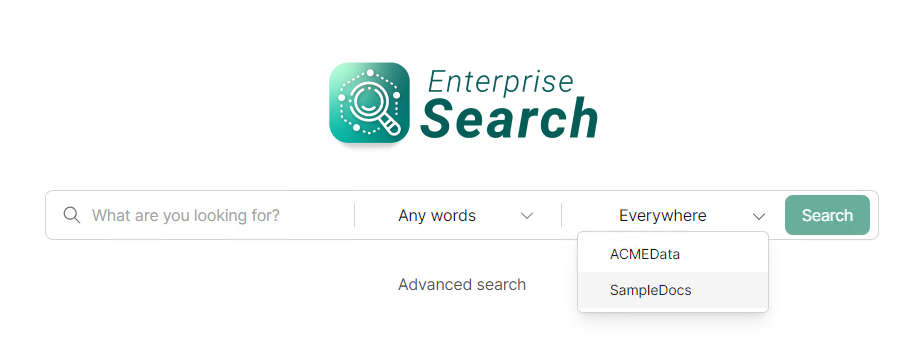
If your administrator has configured a content Source(s) or Source Group(s), you can filter by them.
Specify your search query with one or more options selected from the Source dropdown.
Selecting a source group will automatically select all sources within that group. To deselect a particular source from within a source group, uncheck the box next to the source you wish to deselect.
Read Advanced Searching for more search options.