
The System of Record page shows how much of your system of record has turned up in other sources, and how many extra copies it holds itself. A system of record is the source your organization treats as the official home for its content, such as a records or document management system. Use the page to find copies of official content in file shares and other places it shouldn't be, and to see how much storage duplicate copies take up.
To open it, select Records in the side menu.
Before you start
- The System of Record add-on. The page is part of the System of Record add-on. Without it on your license, Records doesn't appear in the menu. You can see your add-ons in Settings > License.
- Who can use it. Control Center administrators and analysts can view the page. Only administrators can choose the system of record.
- File fingerprints. Shinydocs Pro matches copies by their contents (a fingerprint of each file), not by name, so a renamed copy still counts. A source's copies can only be matched once File fingerprints is on for that source and has run.
- The Identify copies background task. This task records which sources hold a copy of each item. Check that it's up to date in Settings > Background tasks. For more, see Background Tasks.
Choose your system of record
Until a source is marked, the page shows a blurred sample. Select Mark a system of record to start, or Configure at the top right of the page later on.
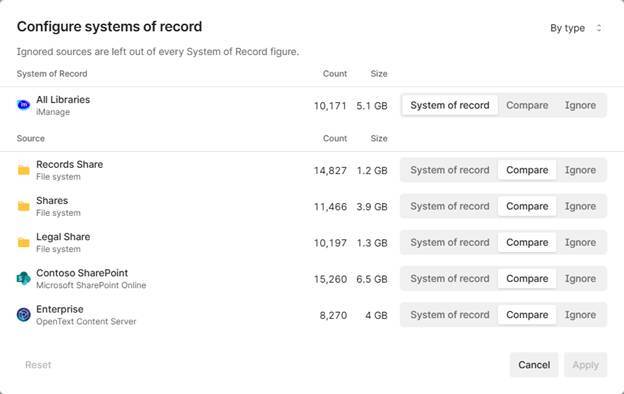
For each source, choose a role, then select Apply.
|
Role |
What it means |
|
System of record |
The official home for its content. Copies of its files in other sources are counted, and so are the extra copies it holds itself. You can mark more than one source. |
|
Compare |
The default. The source is checked for copies of the system of record's content. |
|
Ignore |
Left out of every System of Record figure. Use it for sources that are expected to hold copies, such as a backup. |
Each change is recorded in Settings > Audit as a change to System of record role. On the Sources page, a system of record has a green seal next to its name and an ignored source has a grey one. Select the seal to open the System of Record page.

Dashboard
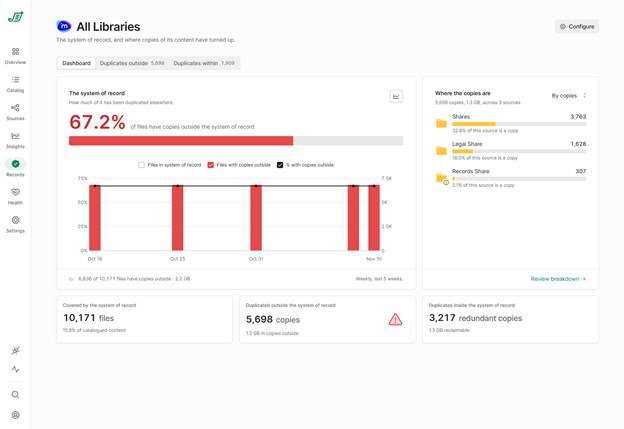
The system of record shows the share of its files that have at least one copy in a Compare source. The figure turns red at 25% or more. If you've marked more than one system of record, each one is listed with its own share. Select one to see the whole page for that system of record alone, or use the names above the tabs to switch between them.
The chart shows the same figures week by week, for up to the last 12 weeks. It's built from the snapshots Shinydocs Pro takes of each source, and appears once there are three weeks to show. Until then, the card says how many weekly captures it has so far. Past weeks are recalculated whenever you change a role. Because the chart is built from snapshots, its latest week can differ slightly from the live figures. Use the check boxes to choose which lines to show.
Where the copies are lists the sources that hold copies, with how many and what share of that source is a copy. Sort it By copies or By share. Select Review breakdown to open the Duplicates outside tab.
The three figures along the bottom are:
- Covered by the system of record: the files in the system of record, and their share of everything catalogued. Ignored sources aren't included, and copies of system-of-record files elsewhere aren't counted twice.
- Duplicated outside the system of record: the copies found in Compare sources. A file copied to two sources counts as two copies.
- Duplicates inside the system of record: the extra copies the system of record holds of its own files, and the storage removing them would free.
The line under the chart, for example 6,836 of 10,171 files have copies outside, counts files in the system of record, each once. Duplicated outside the system of record counts copies in the other sources. The two numbers usually differ: one file can be copied to several sources, and several identical files in the system of record can match the same copy.
Duplicates outside
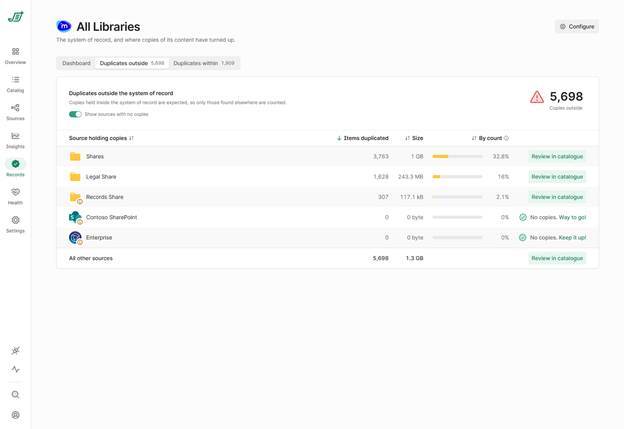
This tab lists each Compare source with:
- Items duplicated: its files whose contents are also in the system of record.
- Size: the storage those copies take up.
- By count or By size (it follows how you sort the table): how much of that source is a copy. The bar turns red at 50% or more.
Select Review in catalogue to open the Catalog with only that source's copies, so you can review them, tag them or act on them. The All other sources row opens the copies from every source together. Turn off Show sources with no copies to hide the sources with none. If you've marked more than one system of record, each row also says which ones it shares content with.
Duplicates within
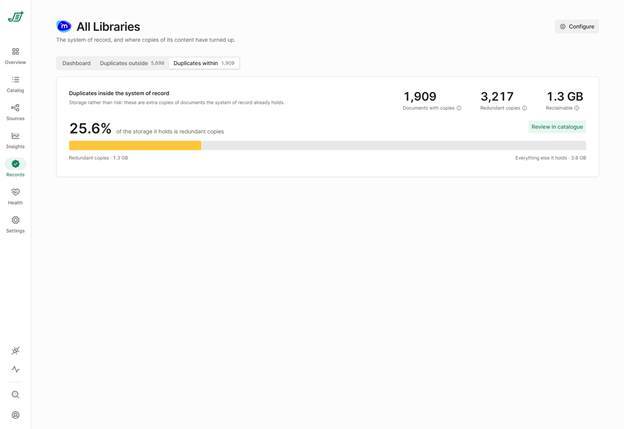
Copies inside the system of record are a storage matter rather than a risk. This tab shows:
- Documents with copies: files the system of record holds more than once. The number on the tab is this figure.
- Redundant copies: every copy beyond the first. The Dashboard shows this figure.
- Reclaimable: the storage that removing the redundant copies would free.
Only copies within the same source count here. If you've marked more than one system of record, the tab lists each one, plus an Across systems of record row for content that more than one of them holds.
Review in catalogue opens the Catalog's duplicates for that source. These can include files whose other copy is in a different source.
In the Catalog
- In the Source column, a system of record's name is in bold with a green seal.
- The Copies in column lists the sources that hold a copy of each item, systems of record first. It's hidden by default; add it from the Catalog's column options. Select a source in it to filter by that source.
When the figures look incomplete
- An info icon next to a source means its figures may be incomplete. Select it to see why: File fingerprints off, items still waiting to be matched, License limit reached, or a source that isn't scheduled for updates.
- While a source is crawling or being fingerprinted, or while Identify copies is catching up, the figures are provisional. A zero isn't shown as all clear, and the text says "so far".
- The figures are worked out when you open the page. Reload the page to see the latest.